

Clients
A client is a person or company you do work for. Everything else in Yven – sites, services, work, invoices, share links – hangs off a client, so this is usually the first thing you create.
Adding a client
From the Clients screen, choose New client. You get a guided, four-step setup: the client’s details, a first site, one or more services, and an optional project – all in the same pass. When you add the first site, Yven pre-fills a domain service from its URL – click Look up to fetch the real expiry date via the expiry lookup – so the most common service is half-filled for you; add as many more as you like before moving on. In a hurry, or importing later? Just give the name and contact details and move on – you can fill in the rest any time.
The client overview
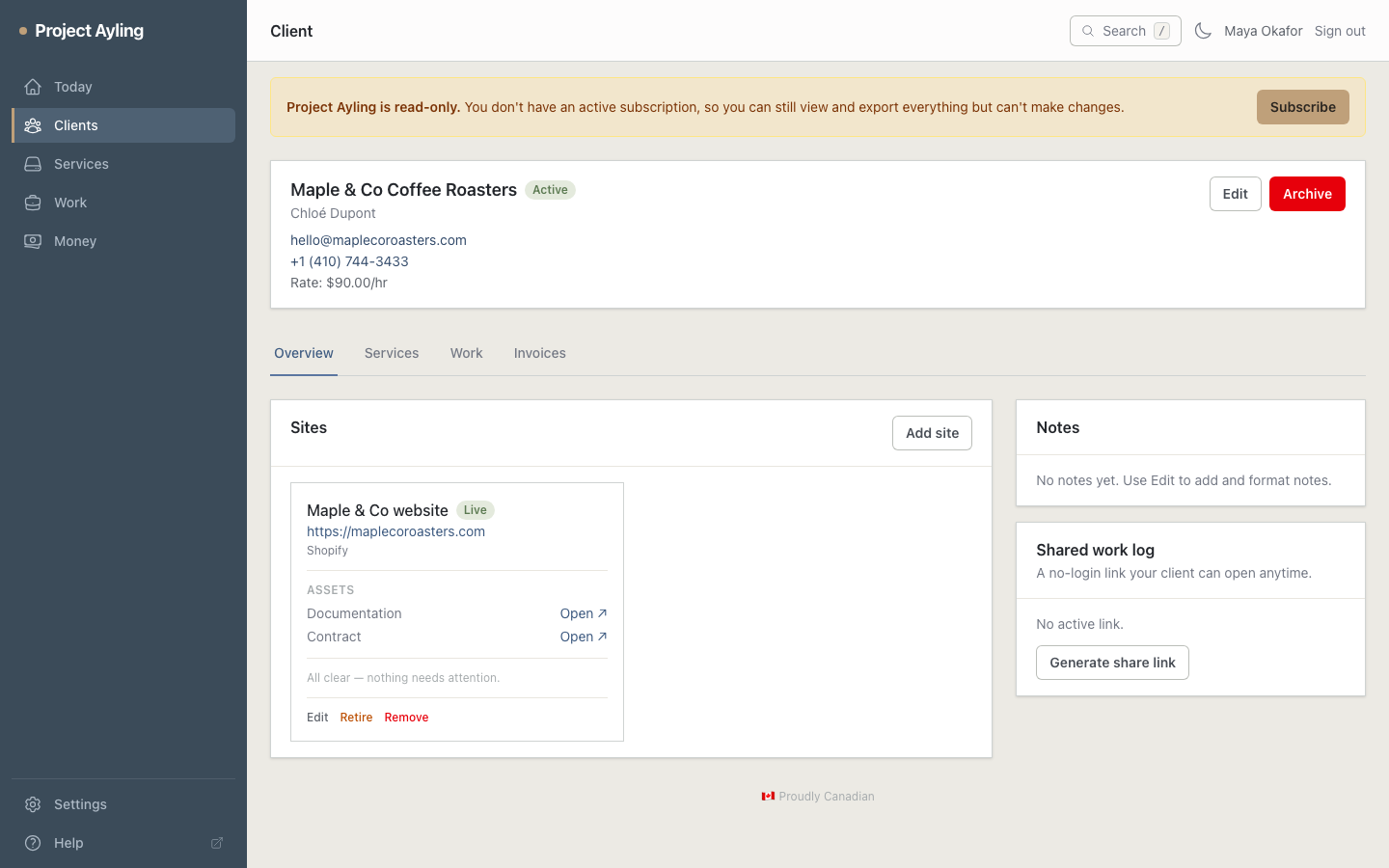
Open a client and the Overview tab gives you the whole picture in four cards:
- Upcoming renewals – the client’s next few active services by renewal date, soonest first. Overdue ones lead and are flagged; the color warms up as the date nears. Click a service to open it, or All services for the full list, or + Add service to add one. Services that have lapsed, transferred, or been cancelled no longer renew, so they don’t appear.
- Recent work – the last five things you logged for the client, with their task type, minutes, and non-billable / hidden flags. All work opens the full log.
- Shared work log – the no-login link you can send the client.
- Sites – each site with its assets and what needs attention.
A client records:
- Name and company – how you refer to them.
- Contact email – used on invoices and where relevant.
- Default hourly rate and currency (optional) – see below.
- Default margin % (optional) – the markup to pre-fill on new re-billed services for this client. It’s your private margin and never shown to the client.
- Client documentation (optional) – a link for docs that apply to the whole account (onboarding notes, a master style guide, and so on). Separate from a site’s own documentation link, which is specific to that one property.
Rates and currency
By default a client inherits the hourly rate and currency you set in Settings. Set a rate or currency on the client to override those just for them – handy when one client is on a different arrangement. The most specific rate wins: a project rate beats the client rate, which beats your default.
Example. Your default rate in Settings is $100/hr. Acme Co gets a client-level override of $125/hr – maybe they negotiated a rate, or you charge more for a demanding client. A specific project for Acme, a rush job, is set at $150/hr. Work logged against that project bills at $150/hr; other work for Acme bills at $125/hr; work for any client with no override at all bills at your $100/hr default.
Attention items at a glance
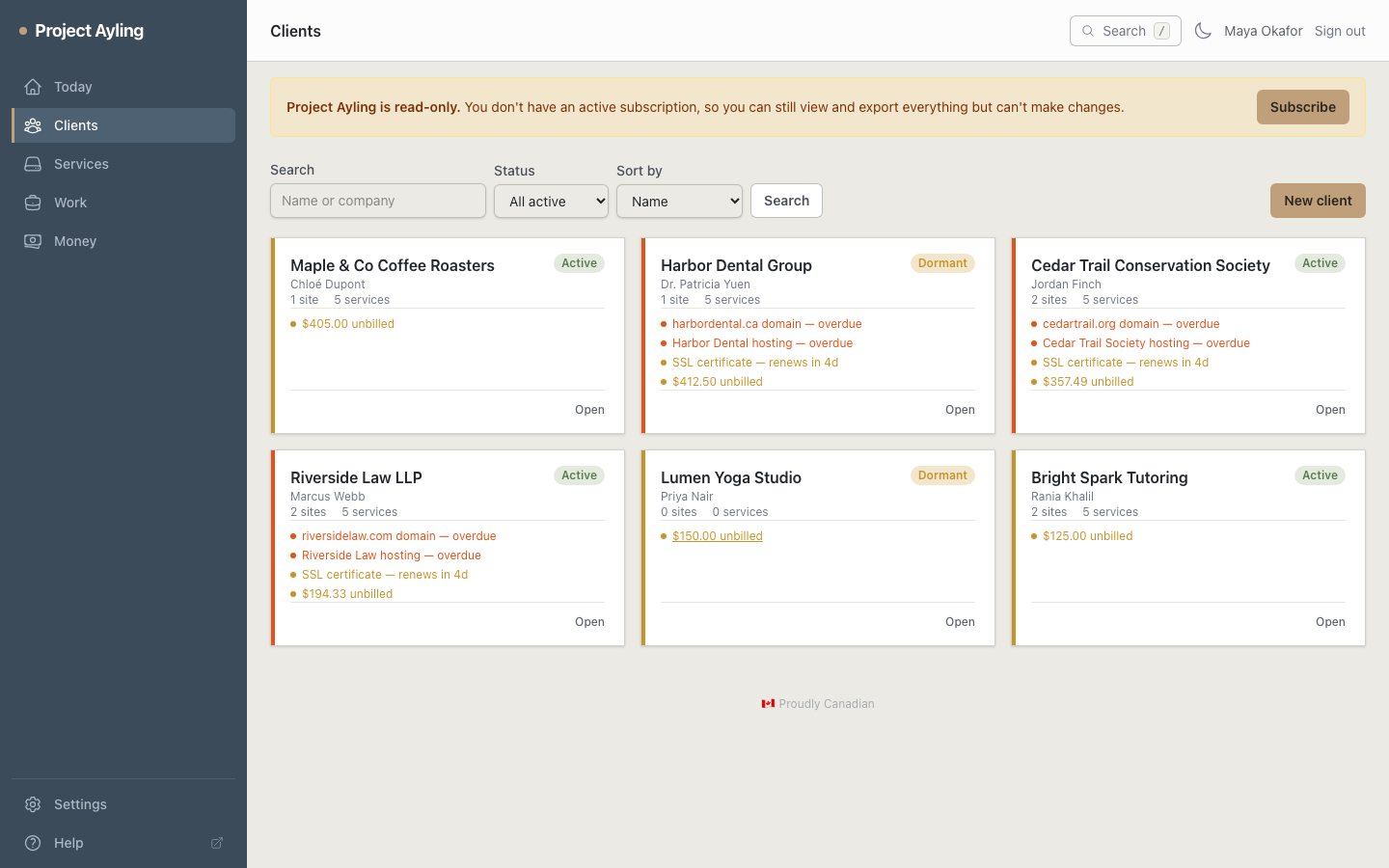
Each card on the Clients screen shows up to five attention items – the same signals as the Today queue, scoped to that client: overdue and upcoming renewals, unbilled work ready to invoice, and stale-contact flags. Each item links directly to the service or page that needs you. When there’s nothing flagged, the card shows a quiet “All clear” message so you know you haven’t missed anything.
Archiving and restoring
When you stop working with a client, archive them. They drop out of your active lists – and out of the Today queue and renewal reminders – but nothing is deleted. Their full history is preserved, and you can restore them later exactly as they were.
(Permanent deletion is separate and deliberate; archiving is the everyday “I’m done with this one for now” action.)
Your data, isolated
Every client belongs to you. Yven is multi-user with strict isolation – no other account can ever see your clients, and you can never see theirs. See “Is my client data private?”.
Where to next
- Add the client’s sites and services.
- Log work against the client.
- Give them a read-only work log.